Frequently asked questions
Go about your day,
share what you see.
How to find a location, contribute an elevator service observation, view service histories and aggregated stats.
01 / Getting started
Start with your daily lift.
Do I need an account?
You can view the map and reports without an account. Sign in to report an elevator or add a past outage.
Create an account or sign in. If you cannot sign up, contact us for help.
Why is my building missing?
The map is not a complete list of buildings. If you cannot find yours, send us the building address.
What does a verified location mean?
The location matches a city dataset. This check does not confirm the elevator's status or safety.
An unverified location can have an address or position that does not match the dataset. Send us a correction if something is wrong.
02 / Making a report
Report what you see.
How do I report an elevator now?
- Sign in.
- Open the location on the map.
- Find the elevator you observed.
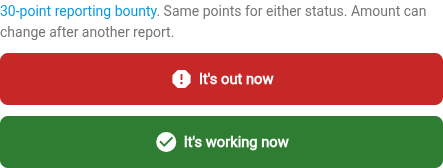
- Select It's out now or It's working now.
Each person counts once per elevator per day. You can change your report on the same day. To remove it, select Undo.
Report what you saw. The report stays in your records for other people to see. A report does not notify a service provider or confirm that an elevator is safe.
How do I add an earlier outage?
- Open the location.
- Find the elevator.
- Open Reported outages.
- Select Add a past outage.
- Enter the dates from your records.
Your own outage periods for one elevator cannot overlap. If they do, edit your existing record. Records from different people can overlap or disagree.
How do I identify the right elevator?
Use the elevator's identifier. Do not use the floor number. Look for these identifiers:
- Car number: a building's letter or number for that elevator, such as "2" or "S1". Look on the door jamb.
- Capacity plate: the plate with the weight limit. It can also show an identifier. The weight limit alone does not identify an elevator.
- Government of BC ID: a provincial registration number, often on the control panel near the alarm or help buttons. Look for this number in BC.


What if someone already reported the outage?
You still get points for your report. If an outage is already open, the site adds your It's out now report to it. The history shows when different people made their observations.
03 / Reading reports
Reports, not guarantees.
Conditions can change. Reports can be incomplete. Before you travel, check with the building or transit operator. This site does not provide safety inspections or emergency services.
What do the colours mean?
Each elevator's colour uses community reports and any TransLink alert.
-
Red: reported out of service.
At non-transit locations, more people reported it out of service than working. A TransLink alert also causes red unless the reports meet the orange conditions below.
-
Orange: potential outage or conflicting reports.
For transit, human reports suggest an outage without a TransLink alert. Orange also means the same number of people reported it out of service and working. Orange also applies when a TransLink alert is active and at least one person reported it working. In this case, working reports must equal or exceed out-of-service reports.
-
Green: reported working.
At non-transit locations, more people reported it working than out of service. For transit, human reports show only working observations that day, with no TransLink alert. Green also means today's successful TransLink sync found no alert and there is no recent human outage evidence.
-
Light grey: unknown.
There is no report in the last four weeks. For transit, the feed is also missing or stale.
Only non-transit colours fade as reports age. Human evidence expires after 28 days. Transit colours do not fade. History shows recorded evidence, not assumed past service.
A map pin shows one colour for the building's elevators. Red has priority over orange. Orange has priority over green. A green pin is not a guarantee of an accessible route.
How do I see the history behind a colour?
- Open the location.
- Find the elevator's calendar.
- Select a coloured day to see its reports.
- Open Reported outages to see outage periods and operator alerts.
Does this replace a complaint or a safety report?
No. Report a service problem to the building owner or transit operator. For a safety concern, use the reporting process of the regulator for your area.
In BC, Technical Safety BC oversees elevator safety. See the local guidance on our About page for more official sources.
04 / Your contributions
Keep a record,
help paint the bigger picture.
What information do you collect and show? Can my landlord identify me?
We keep sign-up details brief compared with services that ask for a detailed profile. To create an account, you need an email address, password, chosen public handle, and default city. You can add a first and last name in your profile, but these are optional. We do not ask for your legal name, phone number, or home address.
Google reCAPTCHA also checks sign-up attempts. See Google's privacy policy for how Google handles that check.
Reports are linked to your account. Public history shows your chosen handle, the location and elevator, the reported status, and the observation date or time. It does not show your email or optional name.
This is pseudonymous, not anonymous. A handle you use elsewhere or the time and place of a report may identify you. We cannot promise that a landlord will not infer who reported or prevent retaliation. If posting could put your housing at risk, consider not submitting the report.
Who can edit a location or an outage?
The person who added a location, its trusted editors and site administrators can edit it.
The person who recorded an outage, trusted editors of its location and site administrators can edit it.
Other people's reports can differ from yours. The site keeps each observation. It does not select one person's report as the final answer.
How do I earn points?
We've incorporated a points system to reward human observations of elevator function. Report what you see, whether the elevator is working or not. Both reports earn the same points.
You earn more points for checking an elevator that nobody has reported on recently. The points available are shown beside the elevator reporting buttons.
- If someone already reported on that elevator today, you earn 3 points.
- Each day without a report adds 1 point. After 7 days, a report earns 10 points.
- The most you can earn for one report is 30 points. An elevator with no previous reports also earns 30.
- Try an elevator treasure hunt: use the bounty leaderboard to find elevators worth the most points. Filter by city, open the map, then report what you see. Only enter places you have permission to access.
You can earn points once per elevator each day. Changing your report adds no points. Selecting Undo takes back the points for that report.
Adding a past outage earns 3 points. Automatic TransLink updates do not earn points or change the points available.
If someone reports before you submit, the points available can drop. Your total points do not make your reports count more than anyone else's.
Can I download my reports?
Keep track of your own elevator service outages, records are necessary in the event of arbitration for dispute resolution.
- Sign in.
- Open My records in the menu.
- Check your reports and outage periods.
- Select Download CSV to save a copy.
Observed is the date you saw the elevator's status. Entered is when you saved the record.